Phone Volume Etiquette for the Office, Commute and Library
Open-plan office, quiet carriage, library or waiting room: the phone settings and habits that keep your audio to yourself wherever it is quiet.
SoundAlert Team
SoundAlert
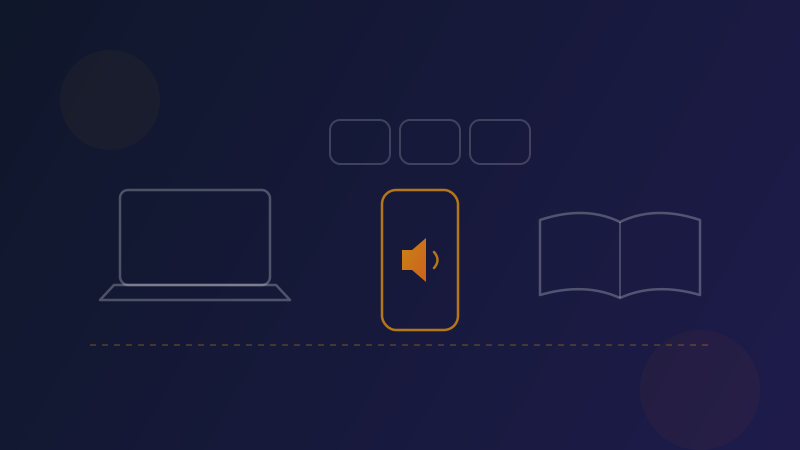
Quiet places share one unwritten rule: your audio is yours. Here are practical quiet phone settings for the office, plus the habits that keep your phone polite on the train, in the library and in waiting rooms.
First: know which volume is which
Android has separate volume settings, and each quiet-place slip usually involves a different one:
- •Media: videos, music, browsers and social apps. The one behind most autoplay surprises.
- •Ringtone: incoming calls.
- •Notifications: message and app sounds.
- •Alarm: your alarms.
- •Call: the other person's voice during a call.
Turning one down doesn't change the others. A phone on vibrate can still play a video out loud, because vibrate mode usually affects the ringtone and notifications, not media. You can see all the sliders in your phone's sound settings, or by pressing a volume key and expanding the panel that appears. Names vary by phone.
Quiet phone settings for the office
At your desk
- •Switch the ringtone to vibrate when you arrive.
- •Bring the media volume down too. It's the one people forget.
- •Use headphones for anything you want to listen to, at a level your neighbors can't hear.
Before a meeting
Run a quick check: ringtone on vibrate, media volume low, phone face down. If you present from a laptop, close any video tabs that might start playing.
When you share your screen
Meeting apps often let you choose whether to share your computer's sound along with the screen. If you don't need it, leave it off, and close anything that could autoplay. Options and names differ between meeting apps.
After a video on your break
Watched something loud during lunch? Lower the volume before you go back to your desk. The next app you open will start at that same level.
On public transport
Quiet carriages
Where a train has a quiet zone, keep media to headphones only, at a level that doesn't leak. Step out to take calls.
Buses, trams and the metro
You often turn the volume up to hear over road noise. That's fine. Just bring it down when you get off, because the next place you open a video might be much quieter.
The scroll trap
The most common commuter slip: a feed opens on a video at the volume you used last night. Lowering the media volume before you open a social app avoids most of these moments.
Libraries, waiting rooms and other quiet spaces
- •Libraries: ringtone and notifications on vibrate or silent; media only through headphones, kept low.
- •Waiting rooms: the same, with extra care around autoplay. Plenty of people scroll to pass the time, and one loud video carries across the room.
- •Cinemas, theaters and ceremonies: silent mode and the screen off.
Turn it into a routine
Etiquette is easier when it doesn't depend on remembering:
- •Make "volume down" part of arriving: at the office, on the train, at the library door.
- •Pause video before taking out your earbuds. Android keeps a separate media volume for the speaker, and it may be higher.
- •Keep earbuds or headphones with you for anything you want to hear in a shared space.
Where SoundAlert fits
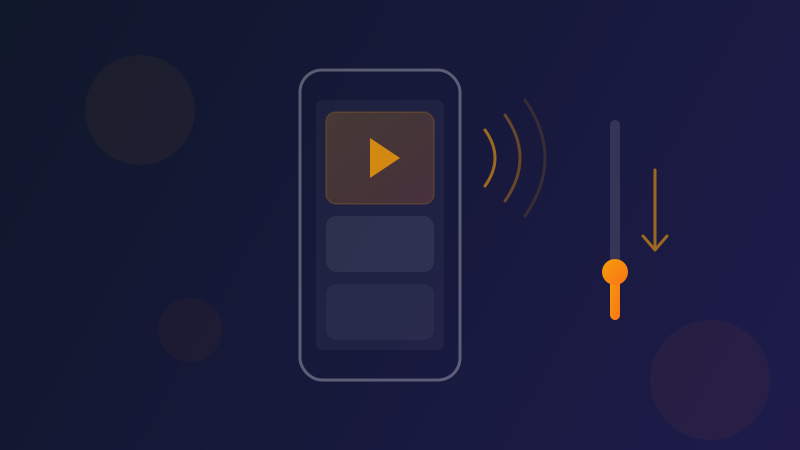
SoundAlert covers the setting that catches most people out, media volume, in the apps you choose. While one of those apps is open, it checks the media volume about once a second. If it's above your limit, it lowers it to your chosen level automatically, before anyone hears. Since version 1.0.5 it does this silently, with only a short on-screen confirmation.
It never touches ringtone, notification or alarm volume, so it doesn't replace the habits above. It covers the moment you forget the media volume. The FREE version protects one app with unlimited auto-reduce, so you can start with the app you open most often in quiet places.
The short version
- •Media, ringtone and notifications are separate settings, and vibrate mode usually doesn't quiet media.
- •Lower the media volume when you arrive somewhere quiet, not after a video starts.
- •Use headphones for anything you want to hear, and pause before taking them out.
- •Let SoundAlert lower media volume in your chosen apps for the moments you forget.
Get SoundAlert on Google Play. No ads, no subscription.
Ready for No More Loud Surprises?
Download SoundAlert for free and let it lower your volume automatically — before anyone hears.
Download Free