SoundAlert Setup Guide: From Download to Auto-Reduce in 3 Minutes
A step-by-step guide to setting up SoundAlert on your Android device. Get set up in under 3 minutes with our easy setup process.
SoundAlert Team
SoundAlert
Getting Started
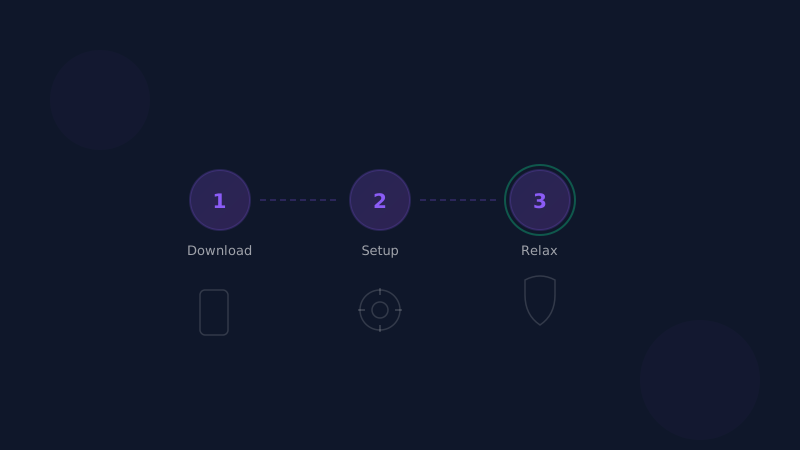
Setting up SoundAlert takes less than 3 minutes. By the end of this guide, your volume will be lowered automatically whenever a chosen app goes above your limit.
Step 1: Download
Download SoundAlert from the Google Play Store. The app is free to start.
Search for "SoundAlert" or "Sound Alert volume control" to find it.
Step 2: Choose Your Language
SoundAlert is available in 10+ languages, including English, Slovak, German, Spanish, French, Italian, Polish, Portuguese, Russian, and Chinese.
Pick yours on the first screen. You can change it any time with the 🌍 button at the top of the app.
Step 3: Grant Usage Access Permission
SoundAlert needs the Usage Access permission to know which app you're currently using. This is required for the auto-reduce feature to know when to activate.
Important: SoundAlert does NOT read your screen content, your messages, or any data inside the apps. Usage Access only tells SoundAlert which app is in the foreground — nothing more.
To enable:
- 1.Tap "Open Settings" when prompted
- 2.Find SoundAlert in the Usage Access list
- 3.Toggle it on
⚠️ Android 13+ note: If the toggle is greyed out ("Restricted Setting"), tap App Info first, then tap the ⋮ menu (top right) → Allow restricted settings. Then return to Usage Access and enable it.
Step 4: Allow Notifications
On Android 13 and newer, allow SoundAlert to show notifications. It uses them for the "volume auto-reduced" confirmations, for alerts, and for the ongoing notification while protection is on.
Step 5: Select Apps to Monitor
This is the most important step. Choose which apps SoundAlert should watch.
Recommended apps to monitor:
- •TikTok
- •YouTube
- •Spotify
- •Any other supported music or video app
FREE tier: 1 monitored app, unlimited auto-reduce
PRO (€3.99 one-time): All supported apps, unlimited auto-reduce, Emergency Mode
LIFETIME (€7.99 one-time): Everything in PRO + AI Volume Learning (levels that fit each app, separately for phone speaker and headphones), your sound profile to share, future updates included
Step 6: Set Your Volume Threshold
The threshold is the maximum volume SoundAlert will allow. When your volume goes above this level while using a monitored app, SoundAlert automatically lowers it.
Presets in the app:
- •Quiet: 30%
- •Normal: 50% (default)
- •Loud Environment: 70%
Or set your own. You can adjust it any time, and set the level SoundAlert lowers to (default 15%).
Step 7: You're All Set!
Tap Turn ON Protection on the Home tab — protection is off until you do. That's it! SoundAlert now runs in the background, with a small ongoing notification ("SoundAlert Active").
From now on:
- •Open any monitored app
- •If your volume is above your threshold
- •SoundAlert lowers it within about a second — automatically
Pro Tips
Battery Life
SoundAlert does a light check about once per second, and only while protection is on.
Dashboard
Check the dashboard to see how many times SoundAlert has lowered your volume. The counter shows "Auto-reduced volume X times since install."
Smart Features (LIFETIME)
LIFETIME users get AI Volume Learning: it suggests levels that fit each app, separately for the phone speaker and headphones, and nothing changes until you tap to approve it. They also get a sound profile to share.
Troubleshooting
SoundAlert isn't reducing volume?
- •Check that protection is ON (Home tab)
- •Check that Usage Access is granted (Settings → Apps → Special access → Usage Access → SoundAlert)
- •Verify the app is in your monitored list
- •Make sure your threshold is set correctly
Volume reduction is too aggressive?
- •Increase your threshold slightly (e.g., from 25% to 35%)
Battery concerns?
- •SoundAlert only does a light check while protection is on. If you see unusual battery drain, write to support@soundalert.com.
Next Steps
- •Explore the Features page to learn about all capabilities
- •Check Pricing to compare FREE, PRO, and LIFETIME plans
- •Visit Tutorial for step-by-step guides
Welcome to SoundAlert. No more loud surprises.
Ready for No More Loud Surprises?
Download SoundAlert for free and let it lower your volume automatically — before anyone hears.
Download Free