Headphones vs Speaker Volume on Android: Why It Jumps
Take your earbuds out and the speaker is suddenly loud, or connect Bluetooth and the volume jumps. Here is why Android does this and how to stay in control.
SoundAlert Editorial Team
SoundAlert
You take out your earbuds and the next video plays from the speaker much louder than you expected. Or you connect Bluetooth headphones and the volume is suddenly far higher than a moment ago. Here's how headphones vs speaker volume works on Android, and how to stop it catching you out.
Android remembers a volume for each output
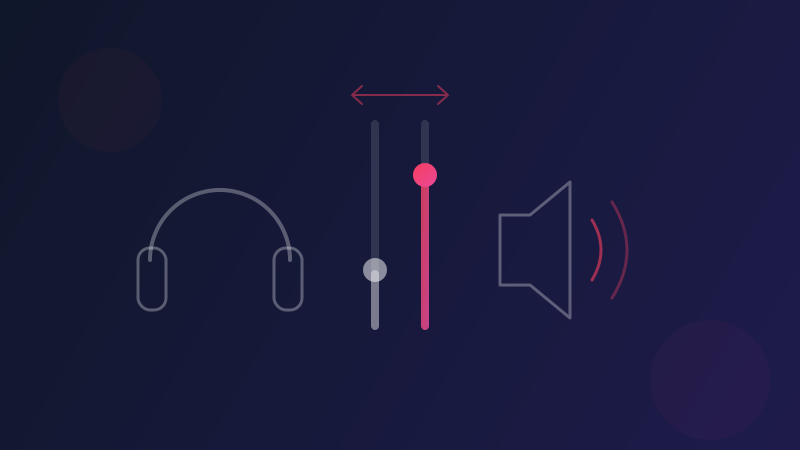
Android doesn't have just one media volume. It keeps a separate media volume for each output: the phone's built-in speaker, wired headphones and Bluetooth devices. When you switch, Android goes back to the level that output had last time.
That's meant to be helpful, because the level you like on earbuds is rarely the level you want from the speaker. But it can surprise you:
- •You played music loud on the speaker while cooking. Later you connect earbuds, and they use their own, separately remembered level.
- •You turned the speaker up in a noisy room hours ago. You take out your earbuds in a quiet one, and the speaker goes back to that higher level.
Nothing is wrong with your phone. It's doing what it was designed to do.
Wired, Bluetooth and cars
Wired headphones
When you plug in wired headphones, Android switches to the headphone level. When you unplug them, Android lets media apps know the sound is about to move to the speaker. Many apps pause at that point, but not all of them do.
Bluetooth headphones and speakers
Many Bluetooth devices sync their volume with the phone, so the phone's slider controls them directly. Others keep a volume of their own, so you may have two controls to think about: the phone's and the device's. It depends on the device.
Car systems
Some car systems use a fixed volume and ignore the phone's media slider, so the car's own volume control is the one that counts. Others sync with the phone. Again, it depends on the car.
Practical habits
Pause before you switch
Pause the video or music before you take out your earbuds or disconnect Bluetooth. Then check the volume before you press play again.
Check the level after connecting
After connecting headphones or a speaker, press a volume key once to see the level before anything plays.
Leave each output at a sensible level
Because each output remembers its own level, it pays to leave the speaker volume low when you're done. The next time something plays on the speaker, perhaps in a quiet room, it starts from there.
Start low with speakers and cars
With a speaker or car system that has its own volume, keep it low by default and turn it up once audio is playing.
How SoundAlert handles outputs
SoundAlert lowers media volume automatically in the apps you choose when it goes above your limit, checking about once a second. Switching outputs is one of the moments where that matters: connect headphones or take them out while a protected app is open, and if that output's volume is above your limit, SoundAlert lowers it.
In Settings → Device Type you choose which outputs SoundAlert watches. There are four cards, Headphones, Earbuds, Speaker and Phone, and all are on by default:
- •Wired headphones count as Headphones and Earbuds.
- •Bluetooth audio counts as Headphones, Earbuds and Speaker.
- •Nothing connected counts as Phone, the built-in speaker.
So if you only want SoundAlert on the phone speaker, keep Phone on and turn the other three off. SoundAlert can't tell earbuds from headphones, or a Bluetooth speaker from Bluetooth headphones, so treat those cards as a group.
The limit and reduce-to level you set apply to every output. If you'd like different levels for the speaker and for headphones, LIFETIME's AI Volume Learning learns them separately from how you actually listen, on your phone, and suggests them. Nothing changes until you tap Apply.
A note on cars: if a car system ignores the phone's volume, SoundAlert can't lower it and shows an alert instead. You can turn off the Bluetooth cards in Device Type if you don't want that.
The short version
- •Android keeps a separate media volume for the speaker, wired headphones and Bluetooth.
- •Bluetooth devices and cars may have their own volume control too.
- •Pause before switching outputs and check the level before you press play.
- •SoundAlert's Device Type setting decides which outputs it watches.
Get SoundAlert on Google Play. It's free for one app, with unlimited auto-reduce.
Written with the help of AI; the SoundAlert editorial team checks and updates our articles.
Ready for No More Loud Surprises?
Download SoundAlert for free and let it lower your volume automatically — before anyone hears.
Download Free