How to Stop Videos Autoplaying Loud on Social Media
Social feeds start playing the moment you open them, at whatever volume you left behind. Here is how to stop that first video from catching you out.
SoundAlert Team
SoundAlert
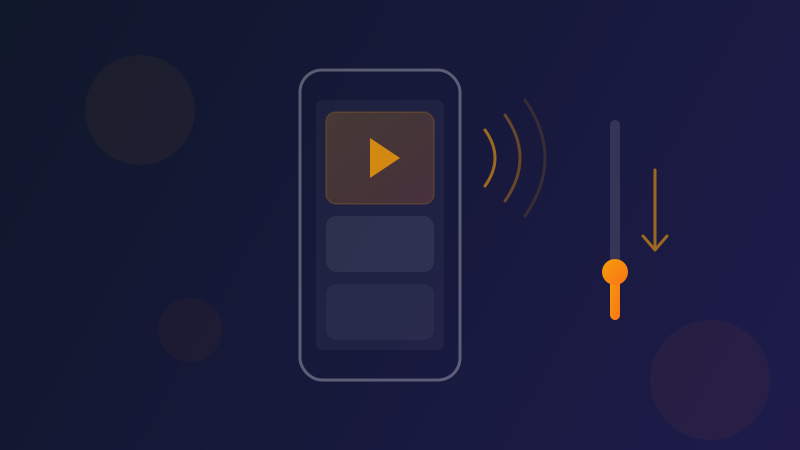
You open Instagram in a quiet waiting room and the first video starts before you have even looked at the screen, at the volume you used for last night's film. If you want to stop videos autoplaying loud on social media, it helps to know why it happens, which settings are worth checking, and which habits make the biggest difference.
Why social videos start loud
Social feeds are built to play video as soon as it appears on screen. The app doesn't choose a volume for you: it plays at your phone's current media volume, the same setting your music, YouTube and browser use.
That is the real cause of most loud surprises. The volume wasn't wrong when you set it. It's wrong for the moment you open the next app:
- •You turned it up on a noisy street, then opened TikTok in a quiet office.
- •You watched a film on the sofa, then scrolled Reels in bed.
- •Someone else used your phone and left the volume high.
The feed simply carries on at whatever level it finds.
Silent mode usually doesn't help
On most Android phones, silent and vibrate mode affect the ringtone and notification sounds, not media. A phone on vibrate can still play a video out loud. If you want feed videos to be quieter, it's the media volume that needs to come down.
In-app settings worth checking
Most big apps have some video or autoplay options, but names and locations change between app versions, and not every app offers a way to start videos muted. Treat this as a guide to what to look for, not as exact menu paths.
Facebook's settings have included media options such as whether videos start with sound and when videos autoplay. Look for a "Media" or "Videos" section in the app's settings.
YouTube
YouTube can preview videos in the home feed. Look in the app's general settings for an option along the lines of "Playback in feeds", where previews can be limited or turned off. The autoplay switch in the player decides whether the next video starts by itself.
Instagram's settings change often, and there isn't always a switch that makes videos start muted. Look through its settings for media or data options. If there's nothing sound-related, the habits below are your most reliable tool.
TikTok
TikTok is built around videos that play with sound as soon as the app opens. Its settings include data and playback options, but don't count on them to start the feed muted.
Updates move things around. An app update can rename, move or reset these options. If videos start playing with sound again, take another quick look through the settings.
Habits that make the biggest difference
Settings help, but the most effective change happens before you even open the app.
Step 1: Lower the media volume first
Press volume down before you tap the app icon, not after the video starts. On some Samsung phones the volume keys change the ringtone unless something is playing; the volume settings have an option along the lines of "Use Volume keys for media" that changes this.
Step 2: Do a quick "where am I?" check
Office, bus, waiting room, bedroom? If the answer is anywhere quiet, give the volume one look before you start scrolling.
Step 3: Pause before you switch outputs
If you have been listening on earbuds, pause the video before you take them out. Android keeps a separate media volume for the speaker and for headphones, so the speaker level may be quite different from the level you had in your earbuds. More on that in our guide to headphones vs speaker volume.
Step 4: Take your phone back at a low volume
If a child or a friend has been watching videos on your phone, turn the volume down when you get it back.
Where automatic volume control fits
Habits work until the moment you forget them, and that is usually the moment that matters. This is the gap SoundAlert is built for.
SoundAlert watches the media volume while the apps you choose are open, such as Instagram, TikTok, Facebook or YouTube. If the volume is above your limit, it lowers it to your chosen level automatically, within about a second, before anyone hears.
- •It checks the volume setting, so it can lower the volume when you open the app, often before the first video gets going.
- •It only changes media volume. Ringtone, calls, notifications and alarms are left alone.
- •It uses no microphone and no camera.
- •By default it steps in above 50% and lowers the volume to 15%. You can change both.
Because it works on the volume setting rather than measuring sound, a video that is loud in itself at a low volume setting won't be caught. A lower limit helps there.
The short version
- •Feed videos play at your current media volume, so the level left over from earlier is the usual culprit.
- •Check each app's autoplay and sound options, knowing they move between versions.
- •Lower the media volume before you open a video app somewhere quiet.
- •Let an app like SoundAlert handle the moments you forget.
SoundAlert is free for one app, with unlimited auto-reduce and no ads. Get SoundAlert on Google Play.
Ready for No More Loud Surprises?
Download SoundAlert for free and let it lower your volume automatically — before anyone hears.
Download Free